Edit
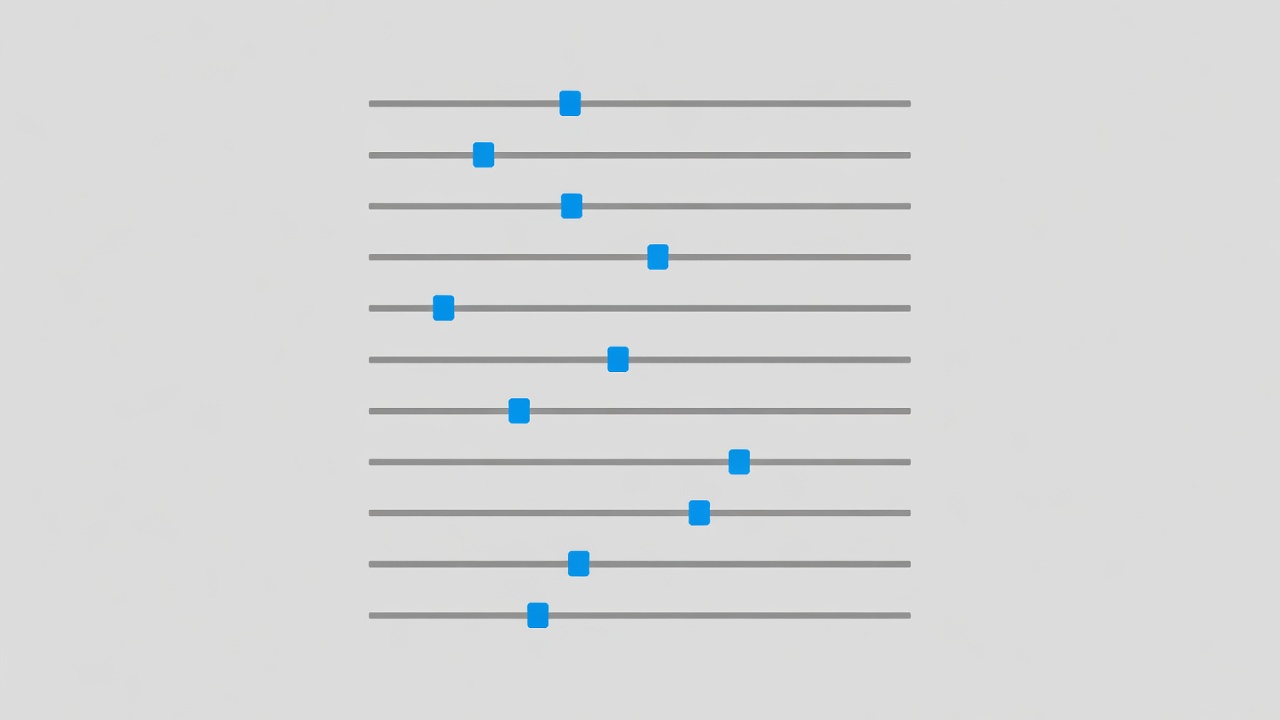
Editing should not be a crutch for bad lighting, but it is an essential step in finalizing a digital image. A raw file directly from a camera is intentionally flat and lacks contrast. Here is a sharp, efficient workflow for processing your indoor photos.
1. Fix the White Balance First
Indoor environments frequently have mixed lighting, leading to unpleasant color casts. Before touching contrast or exposure, correct your white balance. Use the eyedropper tool in your editing software and click on an area of the image that should be neutral gray or white. Adjust the Temperature (blue/yellow) and Tint (green/magenta) sliders until the skin tones look natural.
2. Lift Shadows, Protect Highlights
Indoor photos shot with window light usually feature high contrast—very bright highlights near the window, and deep shadows across the room. Modern camera sensors capture a lot of data in the shadows. Gently raise the "Shadows" slider to reveal details in the darker areas of the room, and lower the "Highlights" slider to recover detail in bright window curtains.
3. Straighten Verticals
Nothing screams "amateur photo" louder than wonky, tilted walls. Use your software's geometry or crop tool to ensure the vertical lines in your image (door frames, walls, window edges) are perfectly straight up and down. This immediately adds structural integrity to the composition.
4. The Power of Local Adjustments
Don't apply all edits globally. Sometimes, only the subject's face needs to be brighter. Use radial or linear gradient masks to slightly boost the exposure and clarity strictly on your subject, while allowing the background room to remain slightly darker and softer. This draws the viewer's eye exactly where you want it.
The 3-Minute Editing Workflow
- Crop and Straighten: Level the horizon and vertical lines.
- White Balance: Neutralize color casts.
- Exposure & Contrast: Balance highlights and lift shadows.
- Local Adjustments: Add a slight radial brightness to the main subject.